Lots of people now vibe code their websites, handing nearly all the code and configuration to AI. Most of the time it works. But “works” and “keeps working” are still a long way apart.
A practice demo going down is no big deal. Once a site has users and starts taking money, waking up to find it dead one morning is a different story. Users don’t care what went wrong behind the scenes. They just decide the product can’t be trusted.
Sudden death comes in three forms: the site goes down, the bill blows up, or the site looks fine while a core service is quietly broken.

Below are the traps I’ve fallen into myself, plus real incidents from around the web. For each one: what goes wrong, why it matters, and the usual fixes.
At the end there’s a prompt you can paste straight into a coding agent to audit your site.
1. The Expiration Dates Behind Your Site
A website is like a car with a stack of paperwork behind it: registration, inspection, insurance. Every one has an expiration date, and if any of them lapses, the car is off the road. Here’s what’s in your website’s stack:
- Your domain
- Your HTTPS certificate, which keeps browsers from warning visitors that your site isn’t secure
- The API keys and login credentials your site uses to call other services
- The credit card attached to your cloud services
- Free trials and prepaid credits, like OpenAI’s prepaid credits, which expire a year after purchase
The domain is actually the least of your worries, since registrars email you weeks in advance. If your certificate lives on a platform like Vercel or Cloudflare, the platform renews it for you and you can mostly forget about it. Only people who rent their own server and install certificates themselves have to keep an eye on them, and Let’s Encrypt stopped sending expiration reminder emails in June 2025. Once a certificate expires, visitors get a full-page browser security warning. Almost nobody clicks through, so your site might as well be offline.
Keys and credentials are where things actually break. Some send reminders, but to the email you signed up with and stopped checking years ago. Some don’t remind you at all.
I got burned by this once. I had an automated pipeline running on a login credential that lasted one month. The day it expired, the pipeline stopped, and it stayed down for four days before I noticed. The expiration date was knowable down to the day. Nothing was watching it.
Tackle this in order:
- Turn on auto-renewal for everything that supports it. Auto-renew your domain, let the platform manage your certificate, and put a card with a far-off expiration date on your cloud services.
- Hand anything a machine can check to a monitoring tool. Certificate and domain expiration dates can be read automatically. The open-source Uptime Kuma does this for free if you host it yourself, while ready-made services like UptimeRobot charge for the feature.
- For keys whose expiration dates can’t be checked automatically, write the date down the moment you get the key.
The simplest way to track them is a spreadsheet plus calendar reminders: note where each key is used, when you got it, and when it expires, then set reminders 30 days and 7 days out. It costs nothing. The downside is that it runs entirely on discipline. Add a new key one day, forget to log it, and as far as your tracking goes, it doesn’t exist.
What I do is keep every key in a secrets manager, Bitwarden Secrets Manager, with the issue date and lifetime written in each key’s notes. A small program reads through them every day and emails me when something is about to expire. That’s enough for personal projects, but it’s not how big companies do it. They usually have the platform rotate keys on a schedule, so no human has to remember anything.
Whichever route you take, remember one rule: if a machine can check it, don’t rely on hand-copied notes. Hand-copied dates drift from reality sooner or later.
2. Running Out of Quota: Your Site Stops, or Your Wallet Explodes
Cloud quotas work a lot like phone data plans. On some plans, your data cuts off when you hit the cap. On others, you keep going and get charged for the overage.
Cloud services come in the same two flavors. With the cut-off kind, your site throws errors but your bill stays put. With the pay-as-you-go kind, your site keeps running and your bill climbs right along with the traffic. Beginners almost never look at this when picking a platform, yet it decides whether a bad day costs you a day of business or a pile of money.
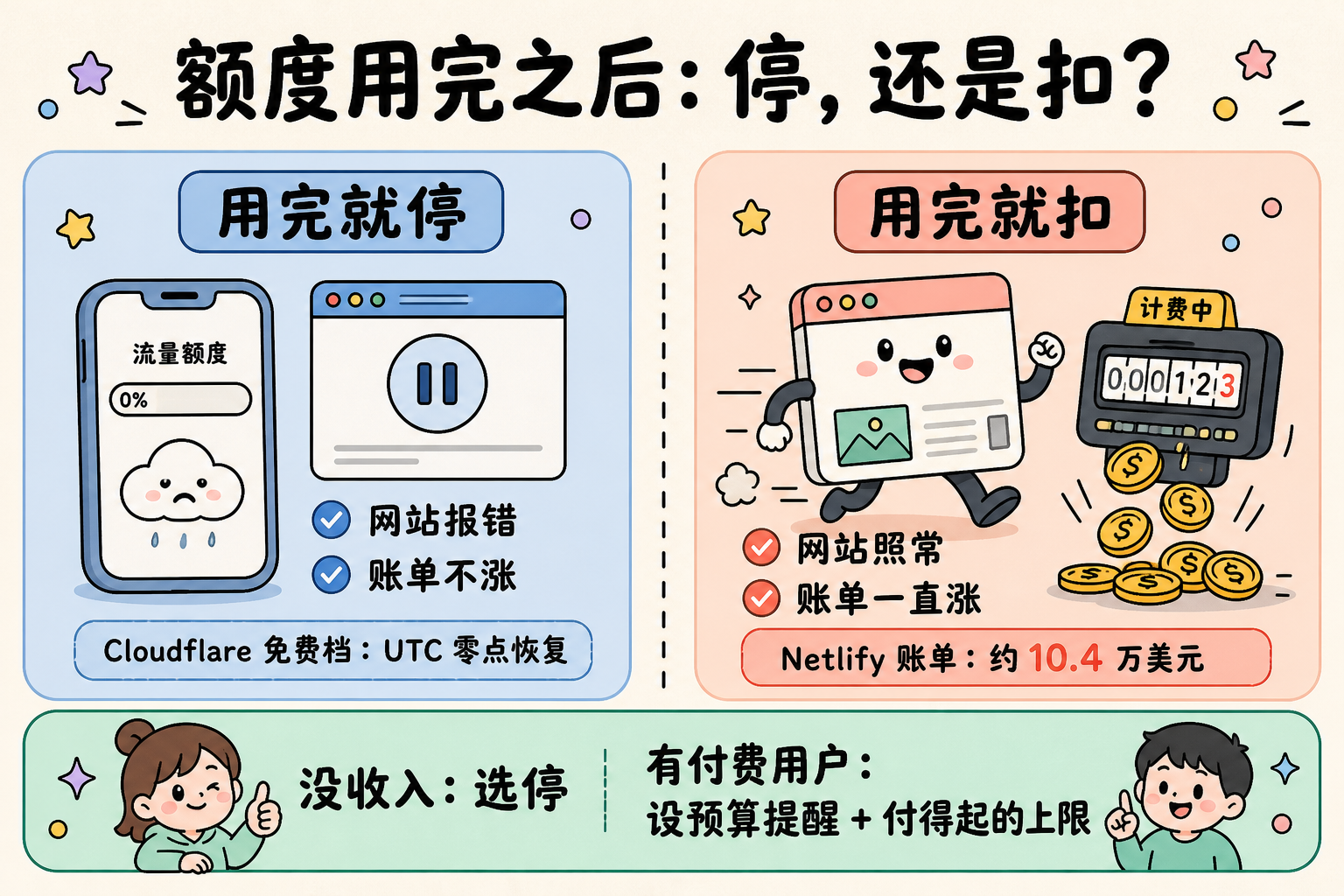
Here’s how some common platforms handle it:
- Cloudflare’s free tier stops when you hit the limit and resets at midnight UTC. Once you upgrade to a paid plan, there’s no spending cap, only reminder emails.
- Vercel’s free tier gets restricted when you run out. On the Pro plan, overages are billed by usage and by default you only get a notification. If you want things to pause automatically when you go over, you have to flip the pause switch in the dashboard yourself.
- Supabase’s free tier never charges you. Go over and you get a notice first, then restricted service. The Pro plan has a spend cap turned on by default.
- AI APIs like OpenAI and Anthropic are mostly prepaid. When the balance hits zero, the AI features on your site die on the spot. Turn on auto-recharge and the charges keep coming. Both let you set a spending limit in the dashboard.
What does the pay-as-you-go kind look like when it goes wrong? In February 2024, a static site on Netlify’s free tier had a single MP3 file hit with 190TB of traffic, for a bill of about $104,000. After the story blew up online, Netlify’s CEO stepped in and waived it. In February 2026, a three-person company had its Gemini API key stolen and ran up $82,314 in 48 hours. They normally spent around $180 a month. Google refused to reduce the bill.
Cut-off plans have a cost too: they trade “your bill got blown up” for “your site got knocked offline.” The same goes for going viral overnight. In 2024, the art community Cara saw its user base explode within a week and ran up about $96,000 on Vercel. With a cap in place, that bill would never have happened, but the site would have gone dark during the exact days it was hottest.
So choose by stage. For a personal project with no revenue yet, better to be down for a day: prefer cut-off plans, and set a cap even on paid tiers. Once you have paying users, downtime may cost more than the bill. Set budget alerts, set a cap well above your normal usage that you can still afford, and put abuse protection in place, which section 8 covers.
What to actually do:
- List every cloud service and API your project uses, and check each one’s official pricing page: does running out mean the service stops, or keeps charging?
- Set budget alerts on every paid service, plus spending limits on AI APIs
The Database That Burns Money: D1
Cloudflare’s database, D1, bills in an unusual way. It doesn’t charge by how many queries you run. It charges by how many rows those queries scan. Writes are billed per row too.
Think of it as a library that charges per page you flip. With a catalog, you go straight to the page you need. Without one, you flip through the entire library from the first page, and every page costs money. A database’s catalog is called an index. If a query the AI wrote doesn’t use an index, every run scans the whole table.
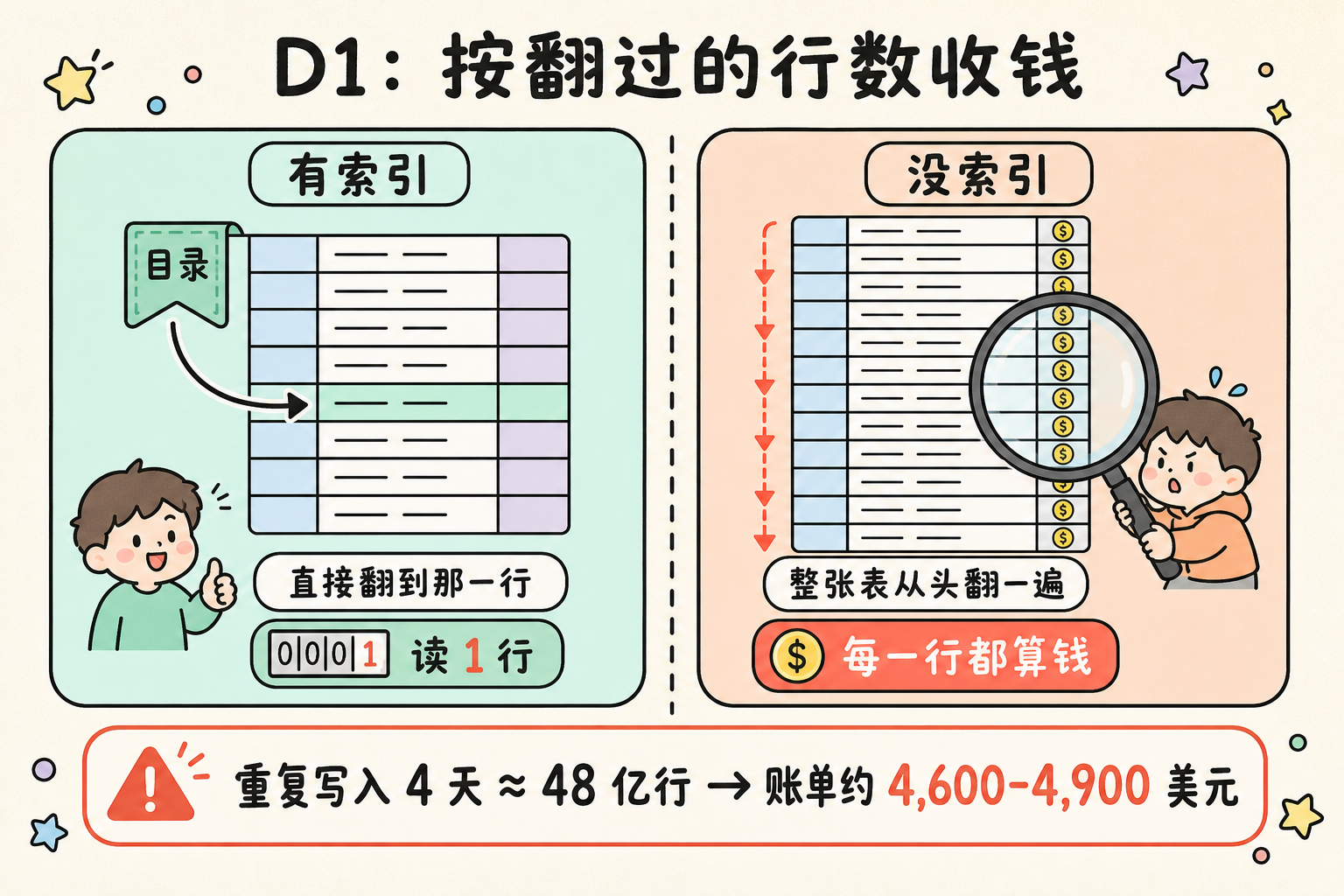
Duplicate writes are even worse. In January 2026, indie developer Nathan Schram, who normally spent about $5 a month on Cloudflare, had two bugs in his code that made the same batch of data get processed and written to the database over and over. The main bug ran for four days before he caught it. That month he wrote about 4.8 billion rows, for a bill of roughly $4,600 to $4,900. After 18 days of appeals, he got a one-time credit. Don’t count on that kind of luck.
If you use D1:
- Have the AI find your most frequent queries and confirm they use an index. Only index the queries you run often, not every column, because indexes make every write cost more
- Don’t let your code query one row at a time inside a loop. Batch it into a single query
- Processing the same batch twice should give the same result as processing it once, never an extra copy. Watch scheduled jobs especially
- Set usage alerts for D1 in the Cloudflare dashboard
3. Databases Go to Sleep When Nobody Uses Them
A Supabase free project gets paused automatically if nobody touches its database for 7 days in a row. You get an email before it happens. Your data is still there, but your site can’t reach the database until you log in and restore it by hand.
This trap is built for two kinds of people: those whose sites get very little traffic, and those who finish something and park it for a while before promoting it. You didn’t change a thing, then one day you open your site and it’s broken.
You have two options. One is a scheduled job that runs once a day and queries the database to keep it active. That job can quietly stop too. GitHub Actions, for example, automatically disables scheduled workflows in public repos after 60 days without any activity, so pair it with the check-ins covered in section 9, on monitoring. The other is upgrading to Pro, starting at $25 a month. Paid projects don’t get paused. If your product is already making money, go this way.
4. Database Backups
If your site goes down, a redeploy brings it back, like rebuilding a collapsed house from the blueprints. Lose your data and the blueprints burned along with the furniture.
Data gets lost in all sorts of ways, including the AI deleting it itself. In July 2025, SaaStr founder Jason Lemkin was coding with AI on Replit when the AI ignored his instruction not to change anything without permission and deleted the production database.
I almost did it myself. During a platform migration, I decided an email subscription service had “never gone live” and was about to delete its database as if it were empty. Then I went through the change history and found the signup form had been live for six weeks, and the database held 40 real subscribers. That machine had no backups at the time.
First, figure out what your platform gives you by default. D1 has Time Travel, on by default: the free tier can roll back to any point in the last 7 days, paid plans 30 days. Supabase’s free tier has no automatic backups, while Pro backs up daily and keeps 7 days. Neon’s free tier can go back up to 6 hours.
Then add a copy that belongs to you:
- Export your data automatically on a schedule and store it on a different platform. Built-in backups live in the same place as your data, so when your account gets banned or your project gets deleted, they go down with it
- Actually restore at least once: load the backup into a fresh database and confirm everything’s there. A backup you’ve never tested may well fail you on the day you need it
- Before deleting any database, export a copy first
5. The AI Fixes One Thing and Breaks Another
There’s a very common vibe coding rhythm: you ask the AI for a small feature, it touches several files along the way, you test the new feature, it works, you ship. A few hours later you find out login is broken, or payments no longer unlock accounts. The AI usually changes more than you think, and you usually test less than it changed.
Three things protect you here.

The first is rollback, like loading a saved game. Vercel and Cloudflare both let you go back to the previous version with one click in the dashboard. When something breaks, roll back first to get the site working, then dig into the cause at your own pace. Two things to know. The save only holds code, and the data in your database doesn’t roll back with it, so back up before letting the AI change your database schema. And after a rollback, Vercel pauses automatic deploys, so once you’ve fixed things you have to turn them back on manually in the dashboard.
The second is previews, like a dress rehearsal before opening night. Vercel and Cloudflare Pages generate a preview URL for every branch. Click through the preview first, and only publish once it checks out. Make sure the preview is wired to a test database and your payment provider’s test mode, so the rehearsal doesn’t touch real money or real data. Cloudflare Workers previews use production data by default, so be extra careful there.
The third is testing. Before every release, at a minimum walk through signup and login, payments, and your core feature. Easier still, have the AI turn those into automated tests that run after every change. Don’t know how to write tests? No problem. Playwright can record your clicks on a web page and generate tests from them. In Anthropic’s official best practices for Claude Code, they say giving the AI a way to check its own work is the single most useful thing you can do. With tests, the AI notices when it breaks something. Without them, it just tells you it’s done.
The Most Dangerous Failure Looks Like Everything’s Fine
Some failures never throw an error. They just make one link in the chain quietly stop working.
My email subscription service had exactly this problem. It needed an API key for the email-sending service, but that key was empty when it was deployed. Users filled out the form, the page told them they’d subscribed, and the data landed in the database just fine. Not a single welcome email went out. It went on like that for about six weeks.
Payments are another disaster zone. After a user pays, payment platforms like Stripe send your site a payment notification on their own, and that notification is what should unlock the order. If you only unlock orders from the page users land on after paying, a user who pays and then closes the tab leaves you with the money collected and the order never unlocked.
How to prevent this:
- When a critical setting is missing (like that empty key), make the deploy fail outright instead of shipping broken. You can have the AI add this directly
- Make errors surface. Hook up error monitoring like Sentry, and don’t let errors get silently swallowed
- Have the AI check your payment flow against Stripe’s official requirements: unlock orders from the payment notification, verify the notification is genuine, and process each notification only once
- Reconcile every so often: check that the money Stripe received matches the orders your system unlocked
6. Managing Your Keys
When people think about website security, they picture a hacker coming after them specifically. What beginner sites run into far more often are automated scripts scanning the entire internet for unlocked doors. In October 2025, security firm Escape.tech scanned more than 5,600 public apps built on vibe coding platforms and found over 400 exposed secrets, plus 175 personal data leaks, including medical records and bank account numbers.
An API key is like a bank card plus PIN for a particular provider: whoever holds it can spend your credits. To get a feature working fast, AI often writes keys straight into front-end code, and front-end code gets shipped as-is to every visitor’s browser, where anyone can see it by opening developer tools. Any variable whose name starts with NEXT_PUBLIC_ in Next.js, or VITE_ in Vite, gets exposed this way.
The other scenario is uploading the .env file that holds your keys to a public GitHub repo. One researcher deliberately put AWS keys in a public repo as a test, and they were stolen and used within a minute.
- Keep any key that costs money on the server only, and have your pages call it through your own backend
- Your backend endpoints themselves need limits on who can use them and how fast. Otherwise nobody needs to steal your key; they can just hammer your endpoint and burn your money all the same
- Add
.envto.gitignorefrom day one so it never gets uploaded - If a key was ever public, even for a few minutes, the first thing to do is revoke it in the provider’s dashboard and generate a new one. Deleting the commit isn’t enough. It may already have been scraped
As for where to keep keys day to day, these rules cover it:
- Store them in your deployment platform’s built-in secrets settings. On Vercel, check Sensitive on your environment variables; on Cloudflare, use the Secret type. Once stored, even the dashboard won’t show you the original value
- Your code should contain only the key’s name and read the value at runtime. The value itself never goes into code or into a chat log. Don’t paste keys to the AI and ask it to set things up for you
- Use separate keys for development and for your live site. Where a key’s permissions and quota can be limited, give it only what it needs. If one leaks, the damage stays small
- Once you have lots of projects, or several machines sharing a set of keys, bring in a dedicated secrets manager. I use Bitwarden Secrets Manager
Going from keys scattered everywhere to managing them in one place cost me plenty of painful lessons. I’ll write a separate post about that later.
7. Database Access Control
If you use Supabase, pay special attention to a setting called RLS. Supabase lets web pages read and write the database directly, using a key that’s public by design. What actually decides who can read and write which data is the access rule on each table, and that’s RLS. With no access rules, anyone holding that public key can read and write your entire table.
Here’s the trap: tables you create by clicking buttons in the Supabase dashboard have access rules on by default. Tables created with code don’t. And when AI builds tables for you, it almost always uses code.
Researcher Matt Palmer scanned 1,645 public apps built with the AI site builder Lovable and found that 170 of them had tables anyone could read and write, leaking users’ names, emails, phone numbers, and payment records. Lovable’s response was that data security is each app developer’s own responsibility. The platform won’t carry that for you.
The fix is straightforward. Turn on RLS for every table, then open the Security Advisor in the Supabase dashboard, which flags any table without access rules. Finally, try it yourself while logged out and confirm you can’t read other people’s data.
8. Rate Limiting Your Endpoints
Signup, verification codes, email sending, AI calls: any endpoint without limits can get hammered by scripts all night long. Hammering your AI endpoint burns your credits and your money. Email abuse is sneakier. Scripts sign up with a pile of fake addresses, your site dutifully sends a verification email to each one, they bounce in bulk, and your email provider suspends your sending because of it (Resend requires a bounce rate under 4%). Now your real users can’t get emails either. SMS costs even more: one scam gets your site to blast verification codes to premium-rate numbers, with the attackers taking a cut.
Then there’s your admin panel. Plenty of people’s /admin page simply isn’t linked from the homepage and doesn’t actually require a login, and scanners make a point of trying common paths like that.
- Put a human check on signup, login, and sending forms, such as the free Cloudflare Turnstile, which works even if your site isn’t on Cloudflare. Have the AI confirm the server validates it too. A checkbox that only lives on the page is as good as nothing
- Rate limit your endpoints, starting with whatever your platform has built in. The free tiers of both Cloudflare and Vercel allow one rate limiting rule
- If you send SMS verification codes, enable only the countries and regions you actually need
- Your admin panel must actually require a login
- Tools only you use shouldn’t be on the public internet at all. Put them on a private network, or add an email verification gate at the door
As for DDoS and other high-volume attacks, every Cloudflare plan includes protection, the free tier too, and Vercel blocks them automatically as well. The case worth worrying about is renting your own server and exposing its address directly to the internet. The simplest fix is putting your site behind Cloudflare.
9. Monitoring and Alerts
Each of the eight problems above has its own defenses, but something always slips through. Monitoring and alerts are how you find out something broke the moment it breaks.
A Homepage That Loads Doesn’t Mean Your Site Works
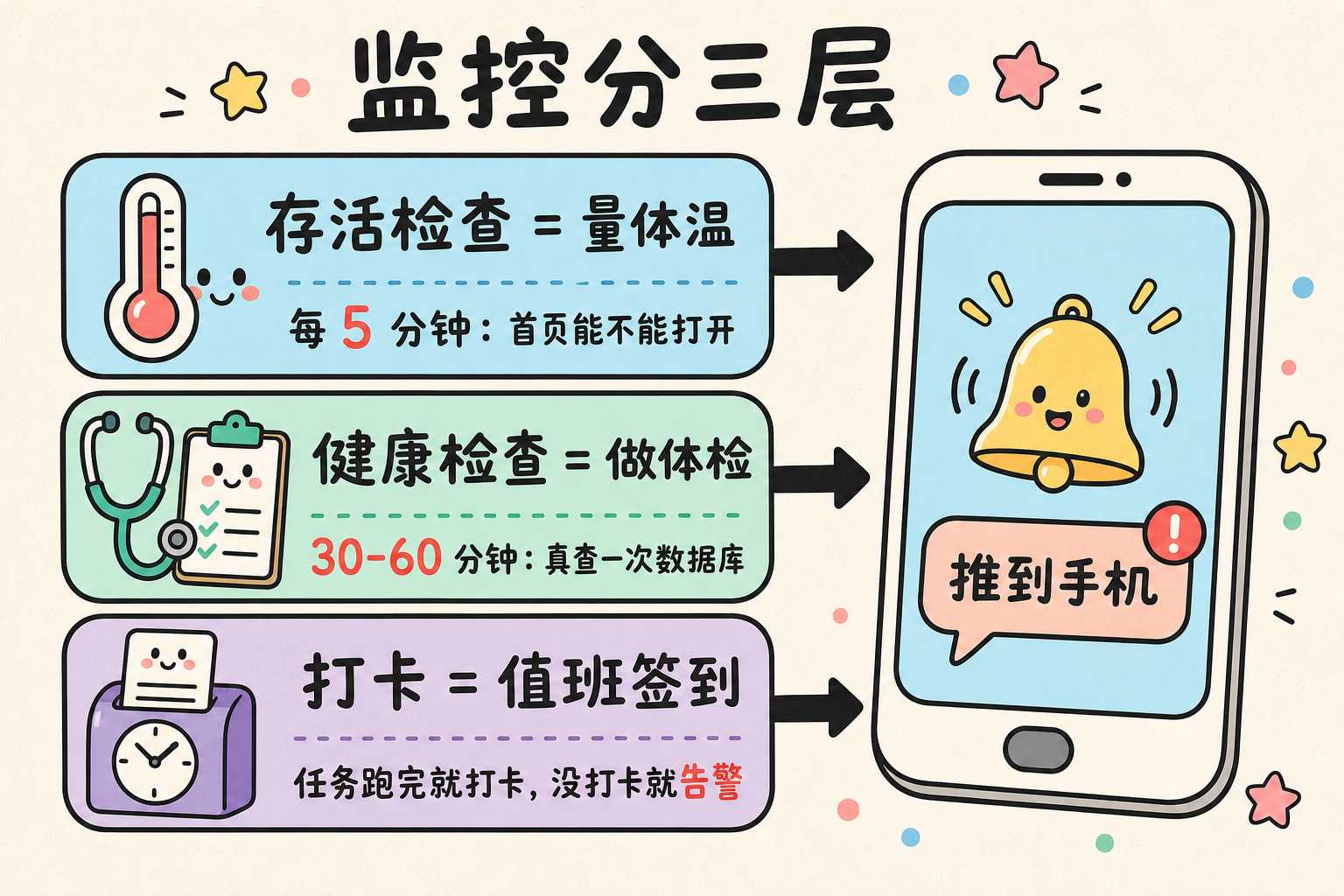
The most basic monitoring is an uptime check: an outside service visits your site every few minutes and notifies you if it won’t load. It’s like taking a temperature. It catches a high fever, but it misses a patient who’s half dead, and it misses the section 5 kind of failure that looks fine but is already broken. A homepage that loads doesn’t mean login works or the database connects.
So it’s worth having the AI write a health check endpoint too. Think of it as a regular checkup: it actually runs a query against the database and confirms your critical settings are present. When you ask the AI to write it, spell out four things. It only reads, never writes. Every step has a timeout. When something’s wrong, it answers only “unhealthy” without exposing internal details. And it runs infrequently, every 30 to 60 minutes, so a database that bills by reads doesn’t burn money for nothing.
Send alerts somewhere you’ll actually look. Email-only alerts get buried easily, so push them to your phone if you can.
Too Many Alerts Is the Same as No Alerts
I learned this one the hard way. I set up 41 checks across my servers and sites, and in four days got 22 failure emails, none of them real. Then a machine actually did reboot, and that one genuine notification sat in the same inbox as a dozen-plus false alarms. I nearly swiped it away as noise.
The biggest harm of false alarms is that you stop believing alerts. Google’s SRE book, its handbook on running production sites, has a principle for this: every alert should be something a human needs to act on.
- Any alert rule that fires while your site is perfectly fine needs fixing
- Don’t alert on a single failure. Alert after repeated failures, or after confirming from another location. Tools like UptimeRobot have that confirmation built in
- Better to monitor fewer things and make every alert worth opening
If Your Monitoring Dies, You Won’t Know
When your monitoring program itself goes down, it won’t tell you. You’ll just assume everything is fine, because no alerts are coming in.
The fix works like clocking in for a shift. Every time your monitoring program finishes a run, it checks in with an outside service. If it misses the agreed window, the outside service alerts you. Same for backup scripts and scheduled jobs: check in when done, and a missed check-in means it quietly stopped.
The principle is simple: whatever reports failures can’t go down together with the thing that might fail.
10. Free Tools Worth Using
I recommend these to beginners because their free tiers are enough for a small site, allow commercial use, and work as soon as you sign up, with no server to run yourself. That doesn’t make them the only option in their categories.
- UptimeRobot: notifies you when your site won’t load. The free tier gives you 50 monitors checked every 5 minutes, its terms allow commercial use, and it can push alerts to its mobile app so they don’t get buried in your inbox
- Sentry: notifies you when your site’s code throws an error and tells you where. It’s the most widely used error monitoring tool, with official support for Next.js and Cloudflare Workers, so it’s easy to have the AI wire it up. The free tier covers 5,000 errors a month, plenty for one person
- healthchecks.io: check-ins for backups and scheduled jobs, notifying you the day one goes missing. Database keep-alives, automatic backups, your monitoring program itself: this is how you find out any of them quietly stopped. 20 checks free
The usage alerts in the Cloudflare, Vercel, Supabase, and AI API dashboards are free too. Set those up while you’re at it.
11. When Things Break, Stop the Bleeding Before You Investigate
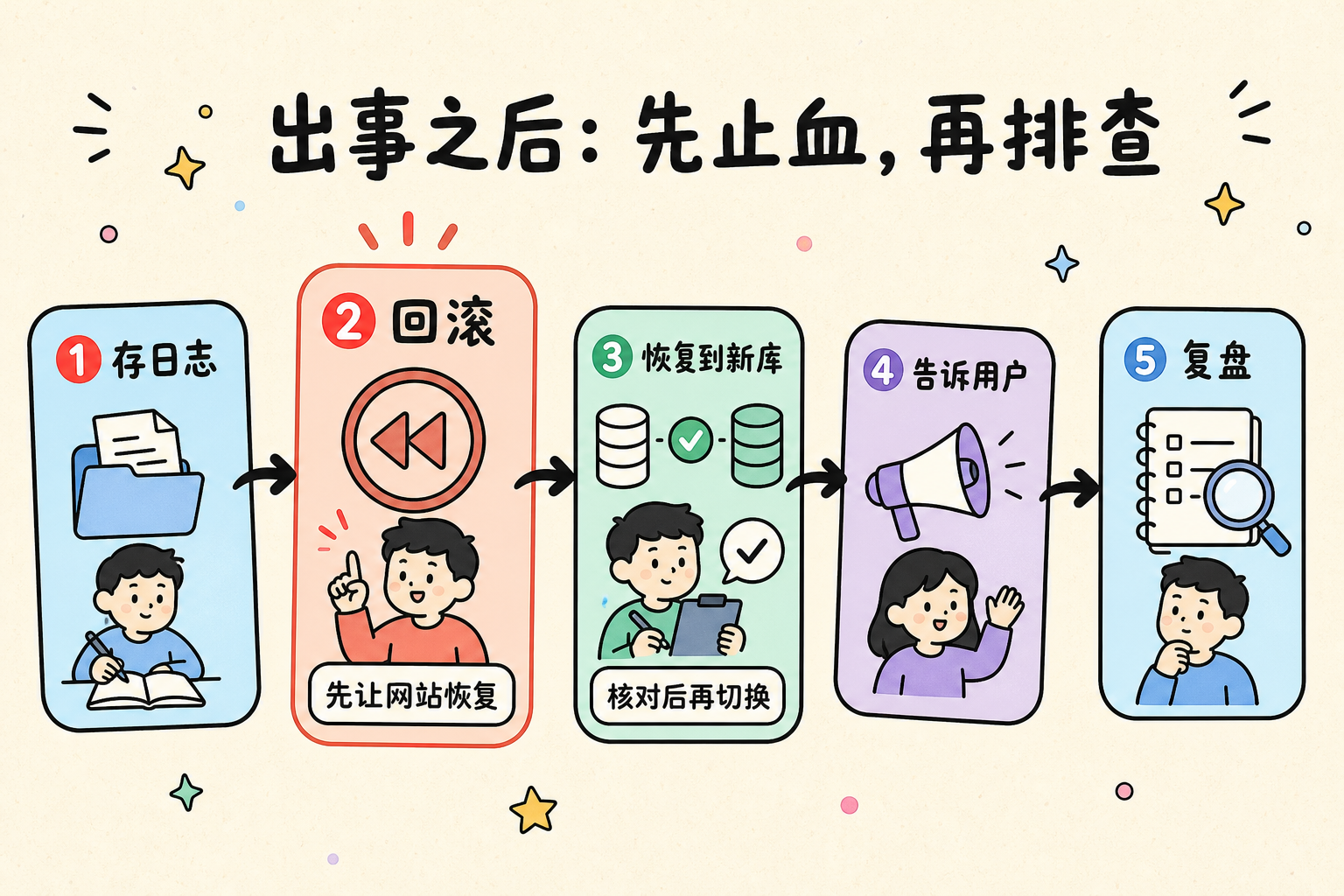
When something actually breaks, go in this order:
- Export and save the relevant logs first. Platforms keep logs for only a short time, and after a rollback they may be gone
- Roll back to the last working version so the site comes back
- If data got corrupted, restore the backup into a new database first, verify it, then switch over. Don’t overwrite the original database directly
- Tell affected users while it’s happening. Don’t wait until it’s fixed. UptimeRobot’s free tier includes a status page you can use for announcements
- Once you’ve recovered, do a postmortem: how did it happen, and why didn’t you catch it sooner?
Hand This Prompt to Your AI
Copy the prompt below into Claude Code, Cursor, or any other AI coding tool and have it audit your project from top to bottom:
Please audit this website project and find problems that could make it suddenly go offline, blow up the bill, or look fine on the surface while actually being broken.

Rules: inspect only, do not modify any files; do not run commands that write to the database, send emails, or spend money; when a secret appears in your report, show only its first 4 characters.

Focus on these areas:
1. Things that expire: domains, certificates, API keys, login credentials. Which ones expire, and is anyone tracking the dates?
2. Quotas and billing: for every cloud service and API in use, does running out stop the service or keep charging, and is there a cap? Are there especially expensive database queries, or logic that might write the same data over and over?
3. Database: could the free database get paused for inactivity? Are there automatic backups, and where are they stored?
4. Code and deployment: do core features like login and payments have tests? Do errors fail silently? Are payments unlocked by the payment platform's notification?
5. Secrets: are any secrets that must stay private exposed in front-end code or git history? (Keys that are meant to be public don't count.)
6. Database permissions: does every table have access control? Can logged-out users read data?
7. Abuse protection: do the signup, email, SMS, and AI endpoints have rate limits and human verification? Does the admin panel require a login?
8. Monitoring: if the site goes down or throws errors, will I find out right away?

For each problem, tell me which file it's in, why it's dangerous, and how to fix it. For anything that can't be seen in the code (like platform dashboard settings), tell me where to check it myself. Finally, sort everything from most to least severe.
None of this makes your site bulletproof. But the next time something breaks, you’ll get the alert, and you’ll know how to bring it back.
Comments